If you're already letting an AI agent drive your editor, the natural next step is letting it also run and read back real browser tests, without you tabbing over to a dashboard to check whether something actually works. DebuggAI's MCP AI server does exactly that: it exposes the whole testing platform as tools any MCP-compatible agent can call directly.
What your agent can do with it
The server ships 8 tools covering 21 actions across the parts of DebuggAI you'd otherwise click through in a dashboard:
- project - list and manage the projects tied to your account
- test_suite and test_case - create, run, and inspect test suites and individual test cases
- environment - manage environments, including stored credentials for apps that require login
- executions - pull run history and results
- check_app_in_browser - drive a live instance of your app interactively and report back what it sees
- probe_page - a fast single-route check: render, screenshot, console errors
- trigger_crawl - kick off a broader crawl of your app
Localhost URLs are tunneled automatically, so testing a dev server running on your machine works the same way as testing a deployed URL. There's nothing to configure beyond an API key.
Install with npx
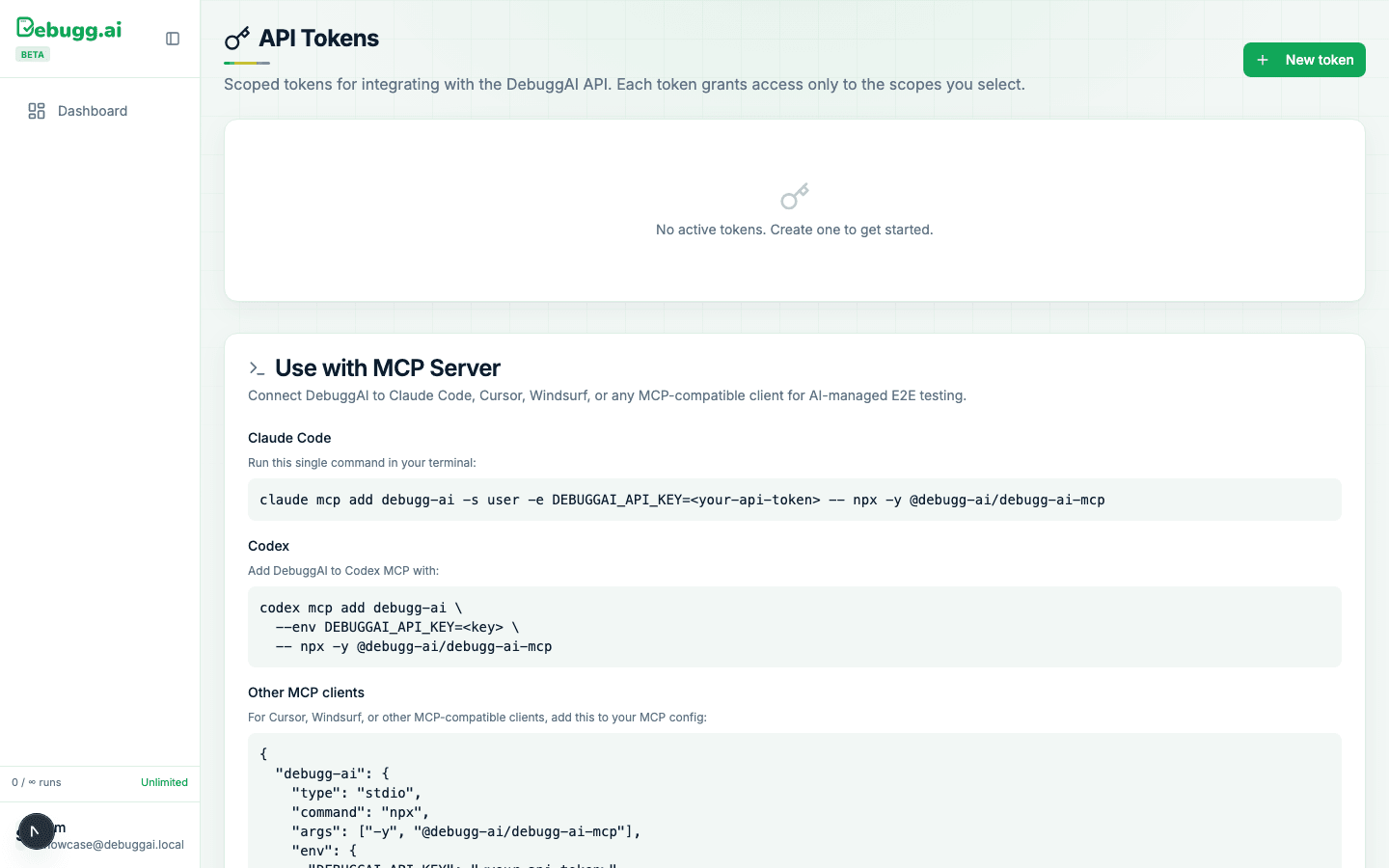
bashDEBUGGAI_API_KEY=your_api_key npx -y @debugg-ai/debugg-ai-mcp
Grab an API key for free at app.debugg.ai. Browser-agent runs count against your DebuggAI plan; installing and connecting the server doesn't cost anything on its own.
Or run it in Docker
bashdocker run -i --rm --init \
  -e DEBUGGAI_API_KEY=your_api_key \
  quinnosha/debugg-ai-mcp
Wiring it into Claude Desktop
Add this to your MCP client config:
json{
  "mcpServers": {
    "debugg-ai": {
      "command": "npx",
      "args": ["-y", "@debugg-ai/debugg-ai-mcp"],
      "env": {
        "DEBUGGAI_API_KEY": "your_api_key_here"
      }
    }
  }
}
Claude Code, Cursor, and any other MCP-over-stdio client follow the same shape: a command, its args, and one environment variable. Repo, branch, and file context are picked up automatically from whatever folder you're working in, so there's nothing else to point at your project.
What to actually ask it
Once it's connected, you're not running CLI commands, you're just talking to your agent:
- "Run the checkout flow test suite and tell me if it's still passing."
- "Probe /pricing on the staging deploy and tell me if there are any console errors."
- "Pull the last 5 execution results for this project and summarize what failed."
- "Check the app in browser, sign in with the staging environment, and confirm the new settings page renders correctly."
The agent calls the tool, gets back real results (pass/fail, screenshots, console output), and reports back in the conversation. You get the same signal PR Copilot posts to a pull request, just available on demand from wherever you're already working.
What a real call looks like
To make this concrete: while writing this guide, we asked an agent connected over this exact setup to check that the pricing section on this site actually renders. It called check_app_in_browser, drove a real browser to the page, and reported back:
"The DebuggAI pricing section is visible and readable. I can see all four plan tiers: Free, Pro, Grow, and Enterprise. The section headline says 'Start free. Know it works.' and the cards show the plan names and details clearly."
That's not a mocked example, it's the actual tool output from the actual call, screenshot included. This is the same mechanism that runs when you ask your agent to check any page, form, or flow: it drives a real browser, looks at the real result, and tells you what it found.
Where the API key actually lives
Screen recording, the same page, in the same dashboard, where DEBUGGAI_API_KEY comes from and where the exact MCP config snippet above is copy-pasteable straight from the UI.
A note on the API key
Treat DEBUGGAI_API_KEY like any other credential: keep it out of version control, and scope it to a project-level key if you're wiring this into a shared or CI environment rather than reusing a personal key everywhere.
Where to go from here
MCP is the on-demand, conversational way to reach the same testing platform behind PR Copilot. If you want tests running automatically on every push rather than on request, set that up too, they use the same account and the same underlying runs.