
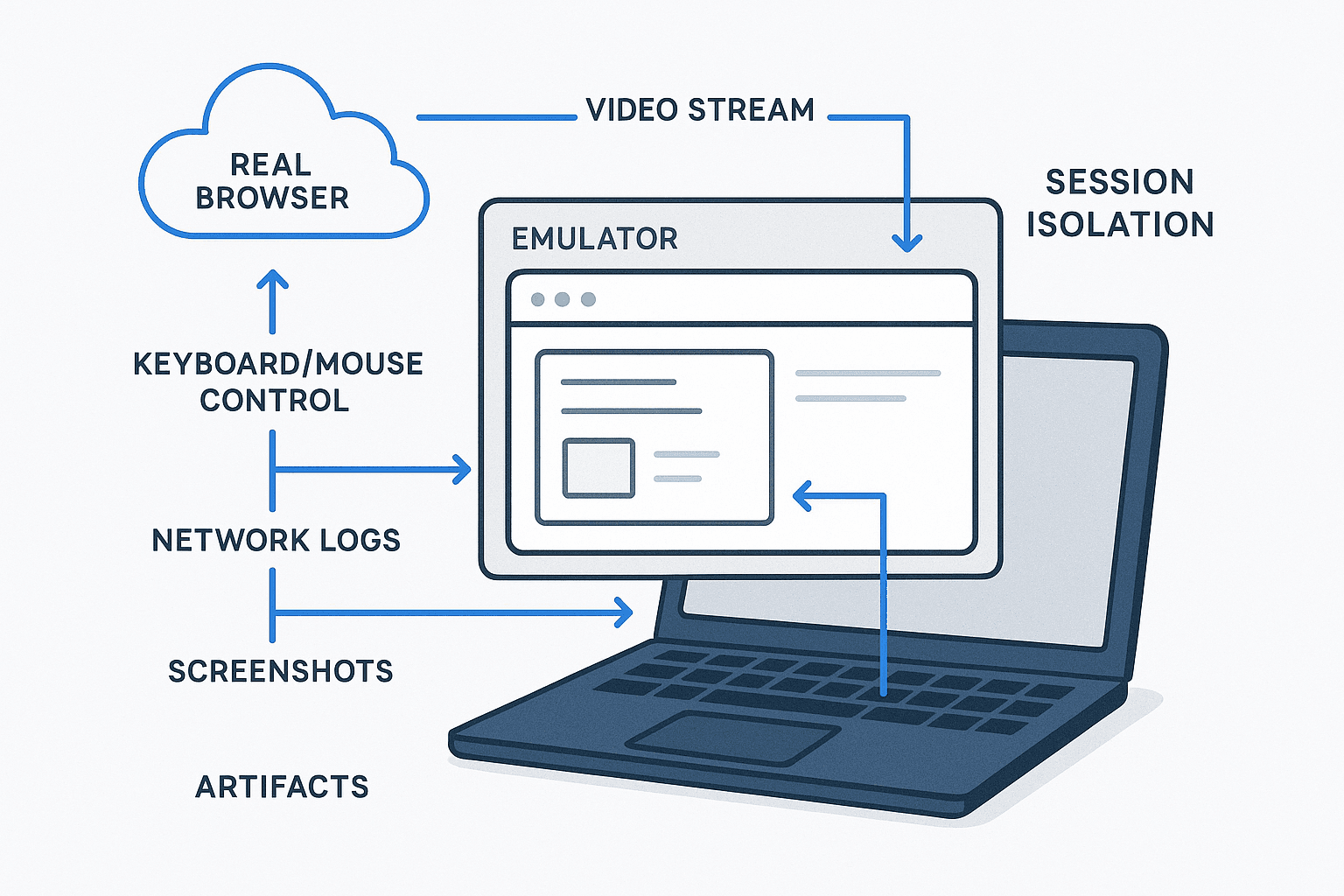
If you're debugging a checkout bug that "only happens in Safari on an old iPhone," a virtual browser is often the fastest way to stop guessing. The same applies when reproducing a customer issue in a locked-down enterprise browser, opening a suspicious link in isolation, or embedding a browser inside website experience without asking users to install anything.
The problem: "virtual browser" gets used loosely. Some vendors mean cloud-hosted real browsers. Others mean a browser emulator. Others are really describing remote desktops, sandboxed sessions, or a browser within a browser demo embedded on a page. These are not interchangeable, and choosing the wrong one is how CI stays green while real users keep hitting the bug.
This guide cuts through the confusion. You'll learn what a virtual browser is, what it is not, when to choose one over an emulator, how to stand one up, and where teams get burned. We'll also compare the major options—Browser.lol, BrowserStack, LambdaTest, Browserling, and OldWeb.Today—so you can make a decision based on engineering reality, not marketing copy.
Table of contents
- Key takeaways
- The failure you're probably dealing with right now
- What a virtual browser is—and isn't
- Why virtual browsers matter
- How a virtual browser works
- How to use a virtual browser in practice
- Comparison: top virtual browser tools reviewed
- Common pitfalls
- Best practices
- FAQ
- Related reading
- Conclusion and next step
Key takeaways
Quick facts
- A virtual browser is typically a browser session running remotely in the cloud and streamed to your device over the web.
- A browser emulator imitates browser behavior. It's useful, but not equivalent to a real browser engine.
- If the bug touches rendering, JavaScript APIs, auth, cookies, WebRTC, media, or extensions, use a real remote browser—not emulation.
- "Virtual browser online free" tools are fine for quick checks, but they're a poor fit for secure testing, CI pipelines, or regulated data.
- The best setup combines real-browser fidelity, observability, reproducibility, and isolation—with artifacts you can hand to engineering.
Watch this: A 60–90 second demo of a login flow reproduced in a cloud-hosted browser—followed by a HAR capture, console trace, and video replay—shows the difference between "I saw it fail" and "here's the evidence." Look for a product walkthrough or Loom embed before you commit to a vendor.
The failure you're probably dealing with right now
Here's the pattern most teams hit:
- Support reports that a page fails for "some users."
- Engineering can't reproduce locally.
- QA tries responsive mode in DevTools and says it looks fine.
- CI is green.
- The real cause turns out to be a specific browser engine, a device/browser combination, cached state, a bot-protection rule, regional routing, or an enterprise policy.
This is the gap debugg.ai exists to close: your pipeline can pass every check while the product is broken for the user who actually pays you. Unit and integration tests exercise code paths; they don't exercise the user's browser, profile, and network. Once you accept that, local testing stops being enough. You need an environment that recreates the browser, OS, profile, and network conditions your customer actually used.
That's why interest spikes around terms like browser in browser online, open browser in browser, and browser inside browser. People want fast access to another browser without changing their machine. The use case is legitimate—but the implementation matters. A tab that visually embeds another browser is not the same thing as a remote, isolated browser session you can trust for debugging or security work.
What a virtual browser is—and isn't
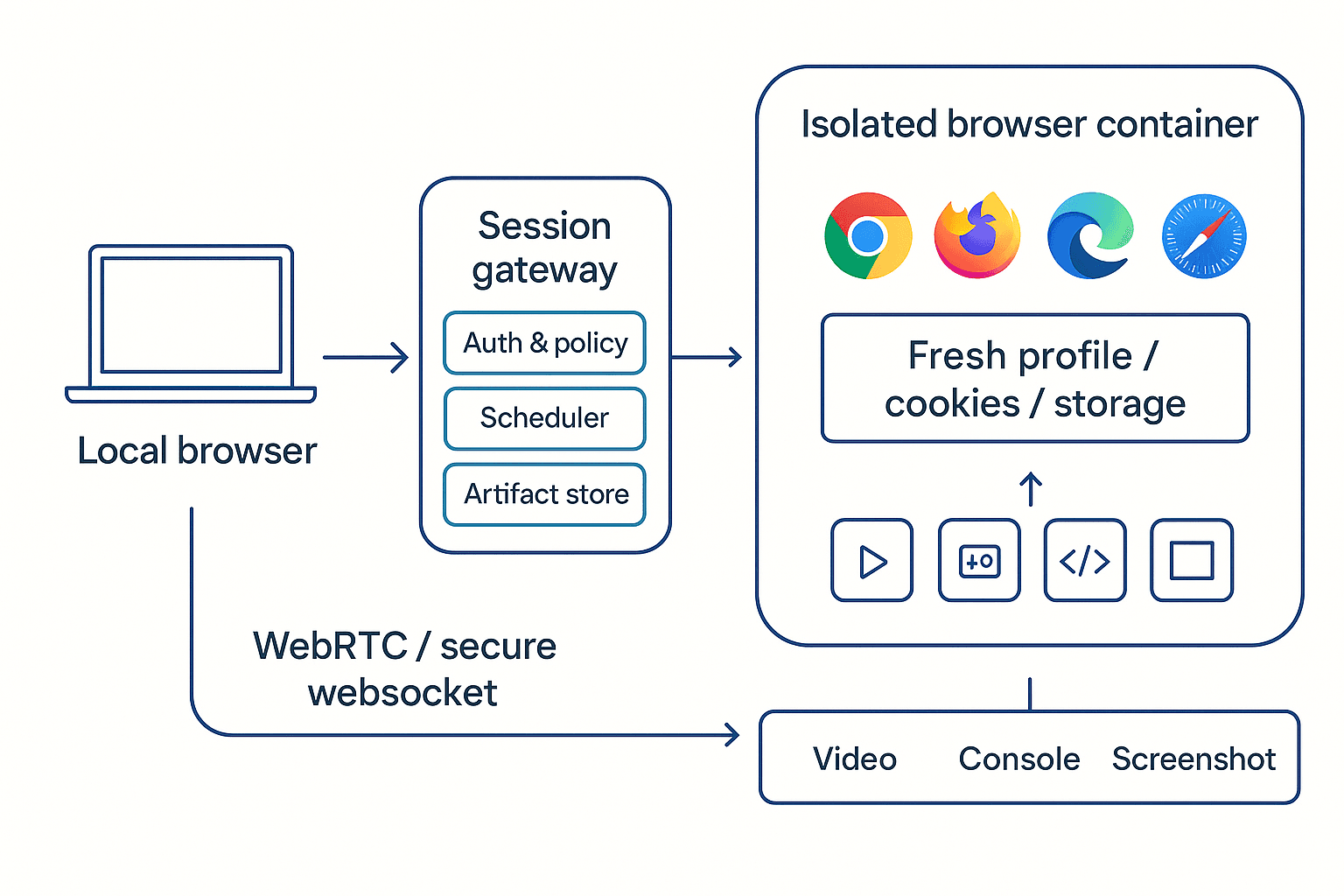
A virtual browser is a browser instance that runs somewhere other than your local machine—typically in a cloud VM, container, or sandbox—and is streamed to you through a low-latency video/control channel (often WebRTC or a secure websocket).
In plain English: you're using a browser to control another browser.
That's why users also search for:
- browser inside website
- browser inside browser
- browser within a browser
- virtual internet browser
All point to the same underlying desire: use a browser environment without installing it locally.
What it is
A virtual browser typically provides:
- A real Chrome, Firefox, Edge, or Safari session running remotely
- Clean, disposable profiles per session
- A range of OS/browser combinations
- Network and console logs
- Screenshots, recordings, and exportable artifacts
- Isolation from your local device
What it is not
A virtual browser is not automatically:
- A browser emulator
- A full virtual desktop
- A secure malware sandbox
- A perfect simulation of every device condition
- A replacement for an end-to-end testing strategy
BrowserStack's own documentation on emulation makes the same point: emulators approximate, they don't replicate. See BrowserStack on browser emulators. Browserling takes the opposite stance—live, interactive cross-browser testing in real browser sessions—because the fidelity gap is real.
Virtual browser vs browser emulator
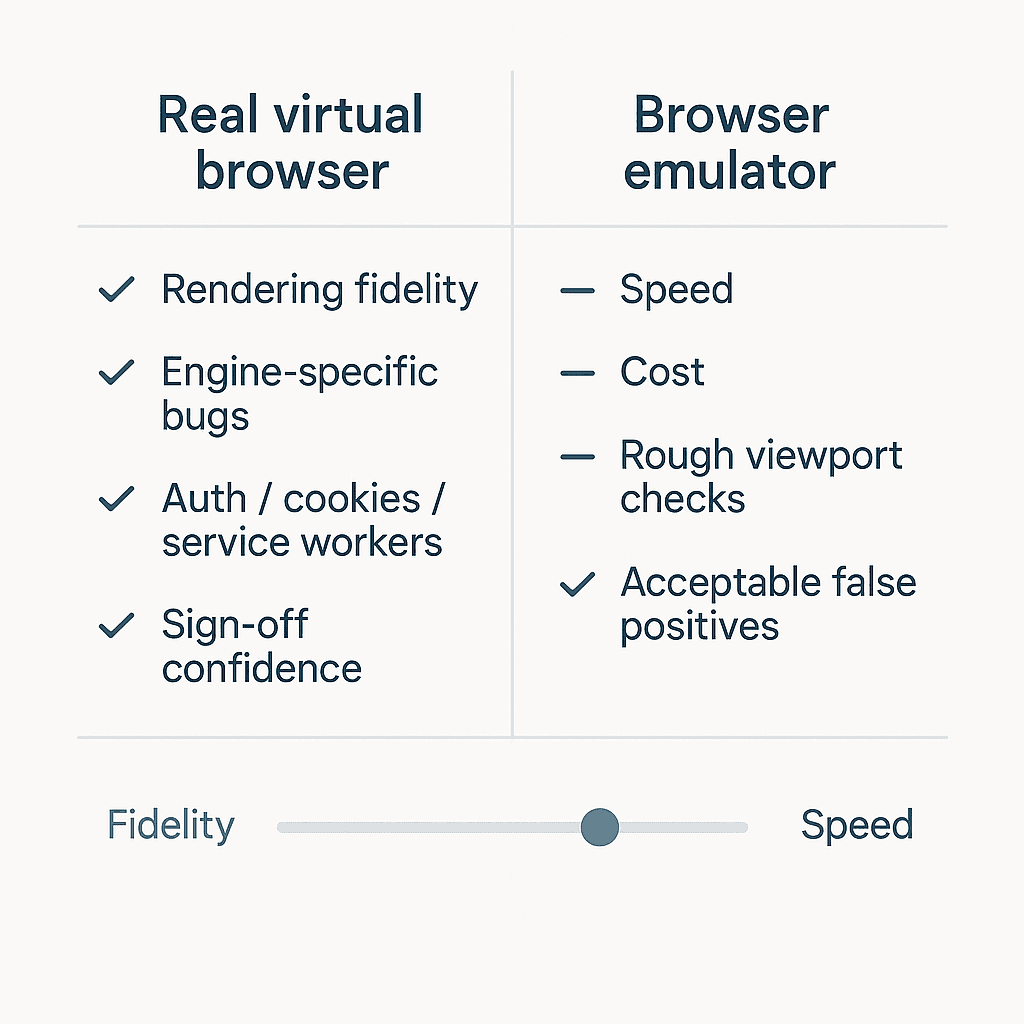
This is the first decision to get right.
Use a real virtual browser when:
- You need accurate rendering or layout behavior
- You suspect browser-engine differences
- You're testing auth flows, cookies, storage, service workers, media, or extensions
- You want defensible confidence before shipping
Use a browser emulator when:
- You're doing quick, approximate checks
- You only need coarse viewport or feature behavior
- Cost or speed matters more than fidelity
- False positives and negatives are acceptable
If a vendor markets both and blurs the line, assume output quality differs until you've tested it.
Why virtual browsers matter
Virtual browsers matter for four concrete reasons: fidelity, speed, isolation, and evidence.
1. Fidelity beats guesswork
DevTools responsive mode is not another browser engine. Reproducing in the actual stack cuts the "works on my machine" loop dramatically.
2. Fast access to environments you don't control
You don't want every engineer maintaining a graveyard of old devices, outdated browser installs, and weird corporate images. A virtual browser gives you on-demand access.
3. Isolation for risky workflows
Security and support teams routinely need to inspect suspicious URLs or customer-reported behavior without touching their endpoint. Remote browsing reduces exposure by separating the session from the device. It's risk reduction, not immunity—don't oversell it internally.
4. Better evidence for debugging and testing
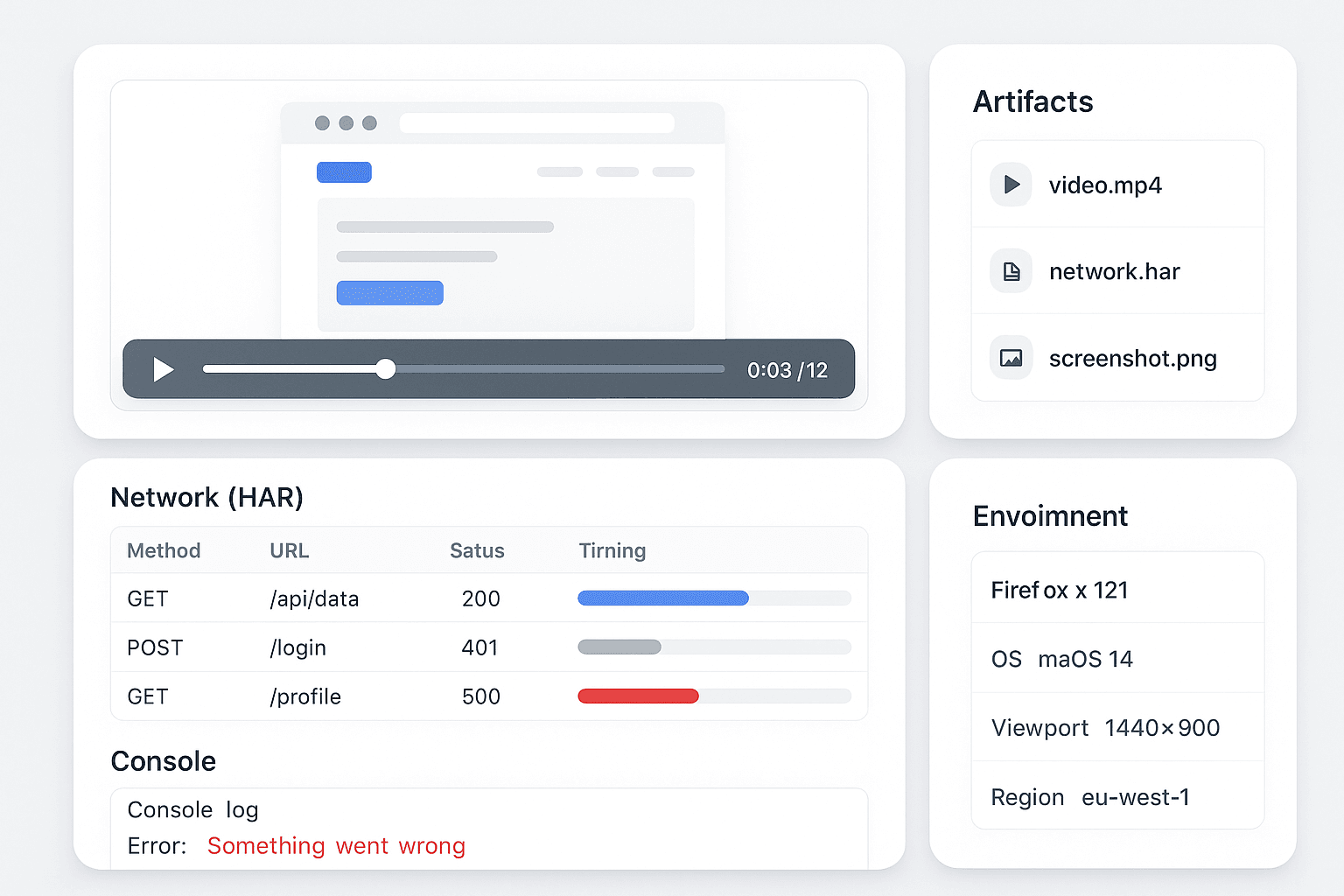
The real value isn't the session. It's the artifact trail:
- video
- network logs (HAR)
- console output
- screenshots
- session metadata
- reproducible environment details
This is where a modern reliability platform has to go past "we give you a remote browser." The browser is the substrate; the evidence layer is what shortens time-to-fix. CI gives you pass/fail. Real users give you failures CI never saw. A virtual browser bridges that gap—but only if it captures what happened.
This article sits under our AI browser pillar. For privacy tradeoffs in hosted sessions, see private browser.
How a virtual browser works
Under the hood, most virtual browser systems look like this:
- Provisioning: A VM, container, or isolated sandbox starts with a specific browser and OS image.
- Session setup: The platform creates a fresh browser profile, storage, and optional proxy/network routing.
- Streaming and control: The browser's display is streamed to your local browser; your keyboard and mouse events are sent back.
- Instrumentation: Logs, traces, screenshots, and test events are captured.
- Teardown: The session is destroyed or reset.
A minimal conceptual architecture:
textYour browser
   |
   | secure websocket / WebRTC stream
   v
Session gateway
   |
   +--> Auth / access policy
   +--> Job scheduler
   +--> Artifact store
   v
Isolated browser container or VM
   |
   +--> Chrome / Firefox / Edge / Safari
   +--> Fresh profile, cookies, storage
   +--> Optional proxy / geolocation / network shaping
Why "browser inside website" can be misleading
When someone asks for a browser inside website, there are two very different implementations:
- Visual embed: A streamed remote browser rendered inside a web app frame.
- DOM simulation: A custom page pretending to be a browser UI.
Only the first is a real virtual browser. The second may be fine for demos, but it's useless for serious compatibility or security testing.
The OldWeb.Today exception
OldWeb.Today is a useful reminder that "virtual browser" can also mean historical access. It lets you browse archived web pages through period-correct browsers—valuable for preservation and research, but a niche workflow, not a general solution for modern app reliability.
How to use a virtual browser in practice
Let's get concrete.
Use case 1: Reproduce a customer-only bug
Users report that a payment form freezes in Firefox.
Workflow:
- Launch a clean Firefox virtual browser session.
- Match the affected browser version and OS.
- Recreate the exact login state and navigation path.
- Capture console errors and network traces.
- Save a video or screenshot sequence.
- Compare against Chrome and Edge to isolate engine-specific behavior.
What often surfaces:
- blocked third-party cookies
- CSP differences
- autofill behavior
- unsupported APIs
- race conditions hidden by timing differences
Use case 2: Run an ephemeral browser for support or ops
A support engineer needs to inspect a customer issue without polluting their own machine.
Workflow:
- Open a disposable remote session.
- Paste the URL or accept a generated troubleshooting link.
- Record the session automatically.
- Export a shareable artifact bundle to engineering.
This is the serious version of "open browser in browser." Not novelty—operational hygiene.
Use case 3: Add virtual browser coverage to test automation
Most teams stop at manual remote sessions and leave value on the table. If your stack uses Playwright or Selenium, run tests against remote browser infrastructure and collect artifacts centrally.
Example with Playwright connecting to a remote Chromium endpoint:
javascriptconst { chromium } = require('playwright');

(async () => {
  const browser = await chromium.connectOverCDP(
    'wss://your-virtual-browser-endpoint.example.com/chromium'
  );

  const context = await browser.newContext({
    viewport: { width: 1440, height: 900 },
    recordVideo: { dir: './videos' }
  });

  const page = await context.newPage();

  page.on('console', msg => console.log('BROWSER LOG:', msg.text()));

  await page.goto('https://example.com/login', { waitUntil: 'networkidle' });
  await page.fill('[name=email]', 'test@example.com');
  await page.fill('[name=password]', 'secret');
  await page.click('button[type=submit]');

  await page.screenshot({ path: 'after-login.png', fullPage: true });
  await context.close();
  await browser.close();
})();
The code is deliberately simple. The real design question isn't "can we connect remotely?"—it's "what evidence do we get when the run fails?" If the platform returns pass/fail and a blurry video, it's not enough to debug with.
Use case 4: Provide a browser within a browser experience for users
Sometimes you literally want a browser within a browser inside your product: onboarding, safe previews, sandboxed docs, training labs, live support.
The architecture usually looks like:
- frontend embeds a session viewport
- backend brokers identity and policy
- remote session runs with per-user isolation
- uploads and downloads are controlled
- session is destroyed on exit
This works—but only if you think through abuse prevention, session limits, clipboard handling, auth, and data retention up front.
A quick evaluation checklist
When evaluating a tool or building your own, ask:
- Real browsers or emulated?
- Isolation boundary: process, container, or VM?
- Per-session cookies and storage handling?
- Can I capture HAR, network, and console artifacts?
- Can I pin browser versions?
- How fast is session startup?
- What's the teardown guarantee?
- How is sensitive data redacted from recordings?
- Is automation supported cleanly?
Comparison: top virtual browser tools reviewed
Ratings reflect engineering use cases—reproducibility, evidence capture, isolation—not marketing surface area.
| Tool | Best for | Fidelity | Debugging depth | Ease of use | Security/isolation | Value | Rating |
|---|---|---|---|---|---|---|---|
| BrowserStack Virtual Browser | Broad enterprise cross-browser testing | 9/10 | 8/10 | 9/10 | 8/10 | 8/10 | 8.5/10 |
| LambdaTest Virtual Browsers | Team-wide test execution and coverage | 8/10 | 8/10 | 8/10 | 8/10 | 8/10 | 8.0/10 |
| Browserling | Fast live manual checks | 7/10 | 6/10 | 9/10 | 7/10 | 8/10 | 7.6/10 |
| Browser.lol | Casual lightweight browser-in-browser access | 5/10 | 3/10 | 8/10 | 4/10 | 6/10 | 5.2/10 |
| OldWeb.Today | Historical web rendering/research | 6/10 | 4/10 | 6/10 | 6/10 | 7/10 | 6.1/10 |
BrowserStack Virtual Browser
Pros
- Mature ecosystem and real-device coverage
- Strong automation support (Selenium, Playwright, Cypress)
- Familiar to most engineering buyers
Cons
- Expensive at scale
- Session and artifact sprawl require governance
- Heavy platform for small teams
Verdict
If you need serious cross-browser coverage and enterprise procurement comfort, BrowserStack is a default choice. To its credit, its emulator guidance is honest about the fidelity gap instead of papering over it.
LambdaTest Virtual Browsers
Pros
- Competitive browser/version matrix
- Strong automation support
- Good fit for teams comparing cloud grids
Cons
- Sprawling product surface
- Experience varies by workflow and plan tier
- Value depends on how disciplined your team is with artifacts
Verdict
LambdaTest is a credible alternative when you want scale and coverage. It rewards teams that already have automation discipline.
Browserling
Source: browserling.com
Pros
- Live interactive model with low ceremony
- Fast for quick manual compatibility checks
- Simple mental model
Cons
- Lighter on instrumentation than full test clouds
- Not built for deep reliability workflows
Verdict
Still useful when you want immediate hands-on browser access. Better for quick reproduction than for standardizing an end-to-end QA process.
Browser.lol
Source: browser.lol
Pros
- Lightweight, easy to grasp
- Useful for casual "browser in browser online" curiosity
- No setup
Cons
- Limited engineering-grade debugging
- Minimal evidence capture
- Not suitable for QA or reliability pipelines
Verdict
Fine as a convenience utility. Don't anchor an engineering process on it.
OldWeb.Today
Source: oldweb.today
Pros
- Unique preservation and historical browsing use case
- Excellent for archived web research
Cons
- Not designed for modern app QA
- Niche compared to cloud testing platforms
Verdict
Useful and distinctive—but not a substitute for a modern virtual browser strategy.
The opinionated takeaway
For engineering orgs, the winning question is not "which tool gives me a remote browser?" It is:
Which tool gives me a reliable reproduction environment plus enough evidence to shorten time-to-fix?
That's where most competitor pages stay shallow. They sell access. You need outcomes.
Common pitfalls
1. Treating emulation as proof
A browser emulator can say "looks good" while the real browser fails. Use emulation for speed, not for sign-off.
2. Ignoring session state
A clean virtual browser may not reproduce a bug caused by long-lived cookies, stale local storage, a service worker cache, or an enterprise policy. State matters as much as engine.
3. Overlooking network conditions
Geo-routing, TLS interception, VPNs, captive portals, and latency all change behavior. A session with the wrong network path hides the issue.
4. Recording too little evidence
If all you have is a screenshot, you're still guessing. Capture console logs, network traces, timestamps, browser version, viewport, and session metadata.
5. Using free tools for sensitive workflows
Searches like virtual browser online free are common because people want convenience. Free tools are rarely the right place for regulated data, internal systems, or incident debugging that touches real customer information.
6. Confusing embedded UX with real isolation
A browser inside website can still be insecure if the backend session model is weak. The visible embedding tells you nothing about the security boundary.
Best practices
Prefer real-browser sessions for high-risk decisions
If a result will block a release or drive an incident conclusion, use a real browser session—not a rough simulation.
Standardize a reproducibility template
For every virtual browser issue report, capture:
- browser name and version
- OS and environment
- URL and exact steps
- auth state or test account
- console logs
- network/HAR
- screenshot and video
- timestamp and region
This single habit pays for the platform.
Make sessions disposable by default
Ephemeral sessions reduce cross-test contamination and privacy risk. Persistence should be explicit, not the default.
Design for observability, not access alone
A remote browser without artifacts is a fancy screen share. A useful platform exposes enough technical context to explain failures—not just show them.
Connect manual and automated workflows
The best teams move from "I saw the bug in a manual virtual browser session" to "here's an automated reproduction with the same environment and artifacts." That bridge is where operational maturity shows up.
Be honest about data boundaries
If you route authenticated sessions through third-party browser infrastructure, review legal, compliance, and data-handling implications. Security posture is architecture plus process, not a checkbox.
If you're also comparing browsing models for internal users, see best browser and ai assistant for adjacent decisions.
FAQ
What is a virtual browser?
A virtual browser is a browser instance running remotely—usually in the cloud—that you control through your local browser. It gives you access to different browser and OS environments without installing them, typically with screenshots, video, and logs you can use for debugging or compliance evidence.
Is a virtual browser the same as a browser emulator?
No. A browser emulator imitates browser behavior, while a virtual browser usually provides a real browser running in a remote environment. Emulators are faster and cheaper for rough checks, but they miss engine-specific issues—rendering quirks, API support, service worker behavior—that real browsers expose.
Can I open a browser in a browser online?
Yes. That's effectively what virtual browser services do: you control a remote browser session from your current browser. Quality varies widely. Some tools are lightweight demos; others are full testing platforms with artifacts, automation, and proper isolation. Match the tool to the risk level of the workflow.
Are free virtual browser online tools safe?
They're acceptable for low-risk public sites and quick checks. They're a poor default for sensitive workflows. Before using any free service, review session retention, isolation, logging, download controls, and whether credentials or customer data could be exposed to the provider or other users.
When should I use a browser inside website experience?
Use it when staff or end users need a controlled browsing session inside your application—for support, training, safe previews, or sandboxed workflows. Don't assume the embed itself provides security. The backend isolation, identity brokering, and policy model are what actually protect you.
Do I still need real devices if I use virtual browsers?
Usually yes, but fewer of them. Virtual browsers cover most compatibility and reproduction work efficiently. Real devices still matter for hardware-specific behavior, touch nuances, battery and performance characteristics, camera access, and certain mobile OS edge cases that cloud sessions don't fully model.
Related reading
If this topic is part of a wider evaluation, these adjacent areas are worth understanding:
- AI browser — the pillar page for AI-era browser workflows and assistants
- Private browser — privacy, session isolation, and data-handling tradeoffs
- Best browser — broader browser selection criteria for teams and users
- AI assistant — how assistants intersect with browser automation and support
External source material referenced in this guide:
Conclusion and next step
A virtual browser isn't a convenience feature. Used properly, it's a practical engineering tool for reproducing bugs, validating browser-specific behavior, isolating risky sessions, and collecting the evidence needed to actually fix issues.
But the category is noisy. Pages ranking for this topic collapse very different things into one bucket: emulators, remote browsers, browser-in-browser demos, historical web viewers. That's why teams make bad buying decisions—they optimize for access instead of fidelity, isolation, and debugging depth.
The right approach is straightforward:
- Start with the use case: debugging, QA, security review, support, or embedded browsing.
- Decide whether you need a real browser or an emulator.
- Require artifact capture and reproducibility.
- Treat free browser-in-browser tools as utilities, not foundations.
The debugg.ai point of view is simple: CI can pass while products break. The browsers your users actually run are where reliability is won or lost. Use the virtual browser as the execution layer, and invest in the evidence layer above it. That's where time-to-resolution drops and where AI-assisted testing starts to pay off.
A good next step: map your top three browser-dependent failures from the last quarter and ask a blunt question—would a better virtual browser workflow have cut diagnosis time in half? If the answer is yes, you have your business case.